Lecturer's tutorial and FAQs
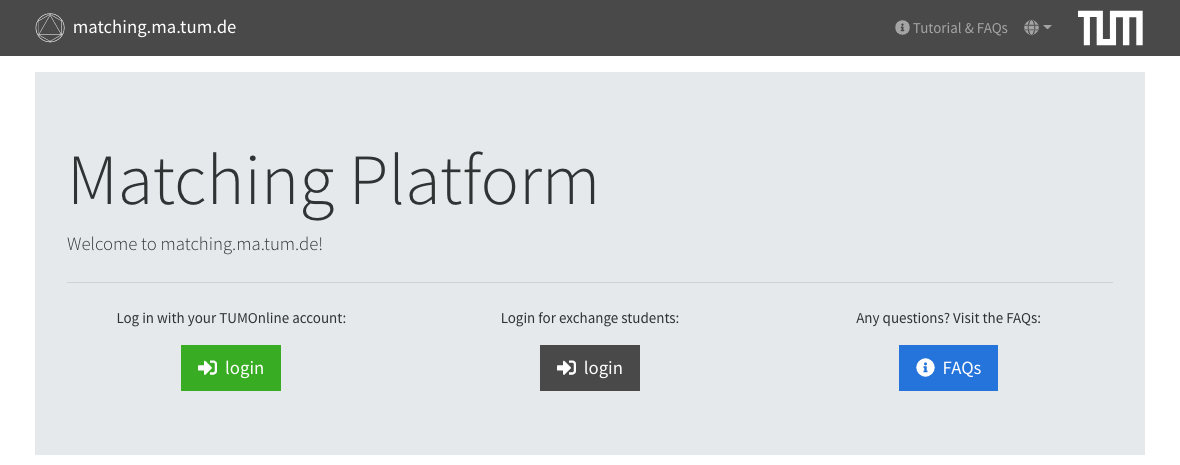
On the main page, you can log in using your TUMonline access data by clicking on the green 'login' button.
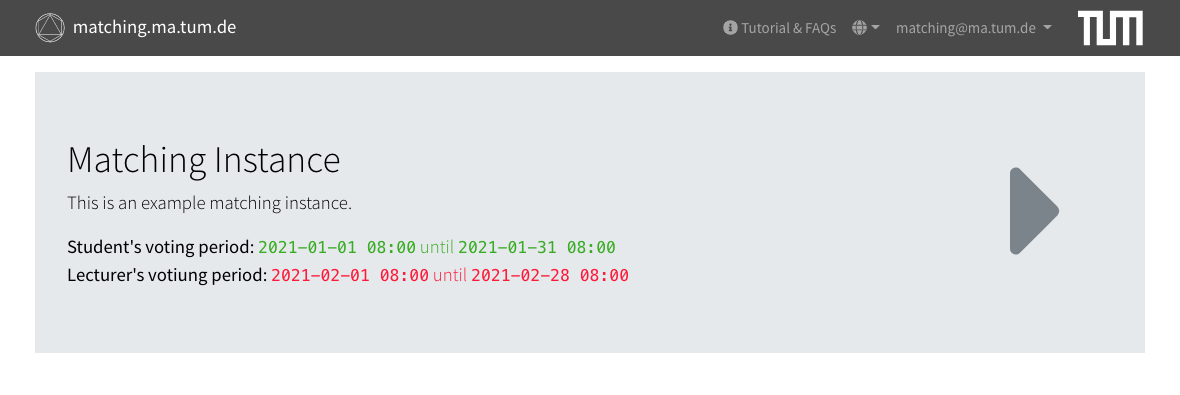
Once you are logged in, you will be shown a list of all available matchings. Click on the matching in which you are leading a course to go to the matching details page.
The matching detail page displays key information such as the voting periods and a table of all courses, with their course(s) highlighted in bold. A preview of the course information can be viewed by clicking on the icon, the detail page can be reached by clicking on the name of the course.
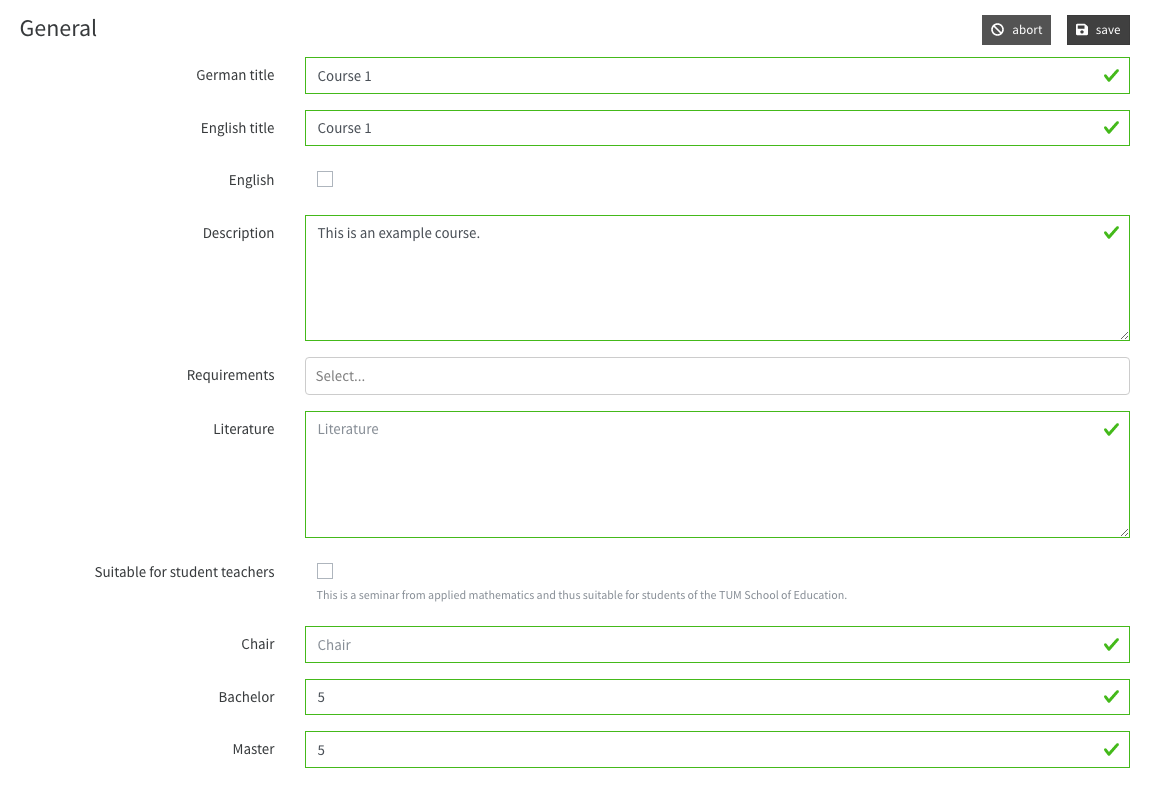
On the course detail page you can edit the information about your course by clicking on the 'edit' button in the 'General' section. Save your changes by clicking on the 'save' button or discard them by clicking on the 'cancel' button.
To select your preferences, click on the 'edit' button in the 'Preferences' section. This will only be displayed to you if the voting period for course instructors is active. You can now rank the candidates using the drop-down lists displayed. Any unranked candidates will remain in the 'Excluded' field, meaning they will not be assigned to your course in any way. Please note that you can assign the same rank to several applicants if you are indifferent about them.
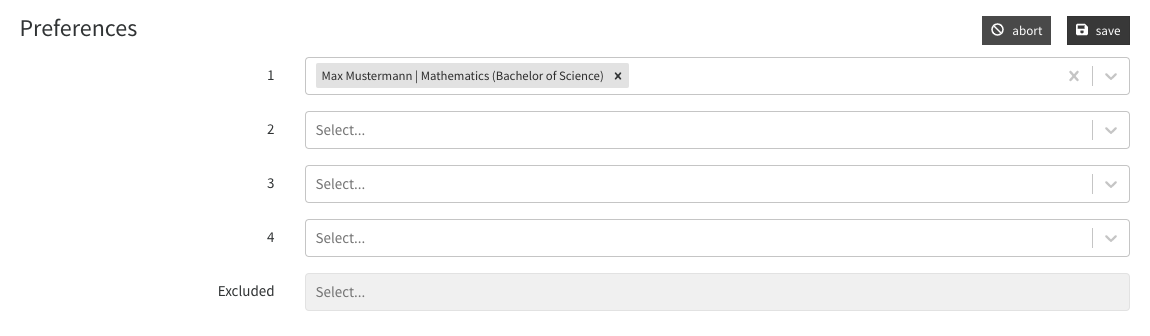
Once you have finished selecting your preferences, do not forget to save them by clicking on the 'save' button. You will now be shown an updated list of your preferences, with unranked applicants hidden. You can edit your preferences at any time during the voting period.
You also have the option to contact all candidates by email. To do so, click on the 'Email applicants' button at the top. A copy of this email will also be sent to all course instructors.
As soon as the matching has been calculated, you will see the assigned students in the section 'Result' on the course detail page.
As a course instructor, you naturally determine the selection criteria for your course yourself. For example, you can include degree programmes, modules taken, grades, CVs or letters of motivation. Please state the prerequisites and the required documents directly in the course description so that students know what information to send you. You can also organise a preliminary meeting and collect the necessary information about the applicants there or through other channels. On the matching platform, you then create their preferences based on this information, whereby they can of course also exclude applications that do not meet all the requirements.
By applying for your course, students confirm that they meet the prerequisites for your course. Should it become apparent at the end of the matching process that the prerequisites are not met, you are of course free to exclude the respective applicants from the course.
Students you would like to have in your course are simply placed in the top positions of the preferences. You can also assign the same place to several students if you are indifferent about them. If you want to exclude applicants (e.g. due to lack of prerequisites), you can do so by not ranking the applicant.
The responsible course instructor is automatically imported from TUMonline and can change the course properties on the matching platform. Other persons registered on TUMonline have no editing rights for the courses on the matching platform.